> ## Documentation Index
> Fetch the complete documentation index at: https://docs-dev-feat-docs-5521-google-one-tap.mintlify.site/llms.txt
> Use this file to discover all available pages before exploring further.
> Learn how to configure a progressive profile form using Forms for Actions
# Use Cases: Configure a progressive profile form using Forms
1. Create a [Machine-to-Machine Application](/docs/get-started/auth0-overview/create-applications/machine-to-machine-apps) with the following scopes enabled:
* `read:users`
* `update:users`
* `create:users`
* `read:users_app_metadata`
* `update:users_app_metadata`
* `create:users_app_metadata`
2. Add a [Vault connection](/docs/customize/forms/vault) using the M2M application credentials.
Forms for Actions allows you to create progressive profiling flows to decide when to prompt users to collect missing information, such as company name and job title, and store them as `user_metadata` attributes.
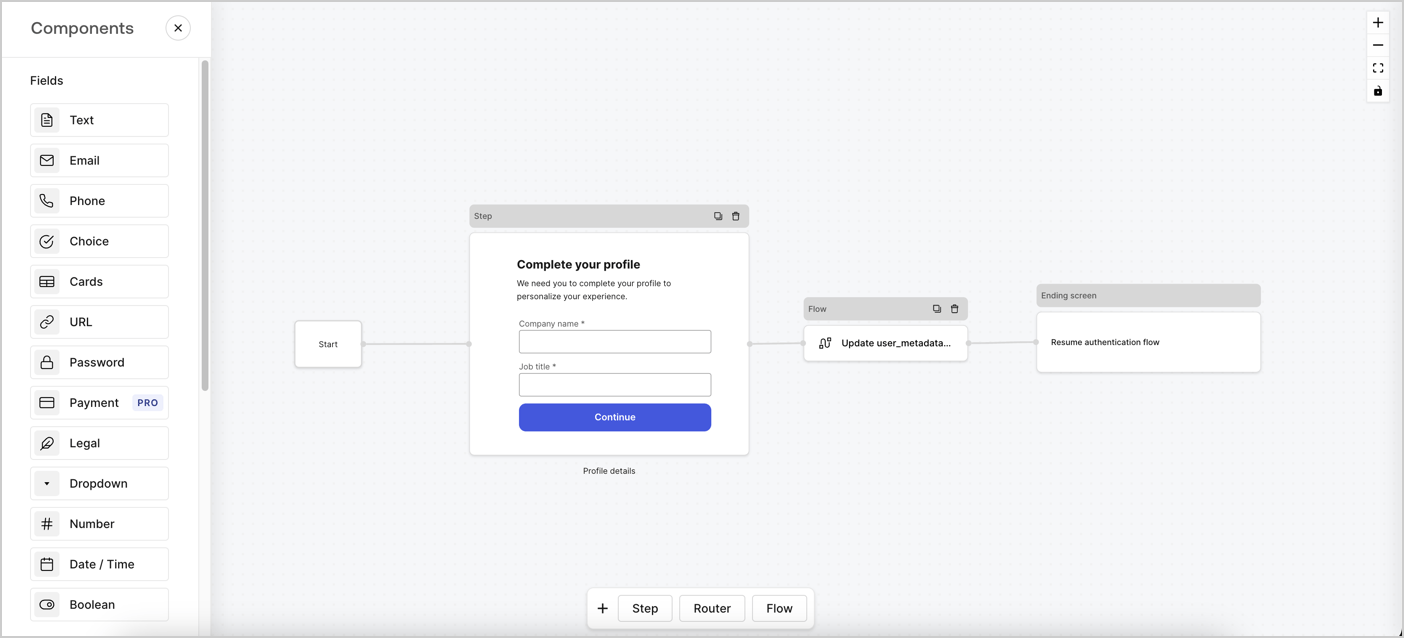 The sections below outline how you can create a progressive profile form using nodes and flows, along with steps for adding your form to a [Post Login Action](/docs/customize/actions/explore-triggers/signup-and-login-triggers/login-trigger).
## Create a form from scratch
Follow these steps to create a form to gather information:
1. Open the Form editor by selecting **Auth0 Dashboard > Actions > Forms.**
2. Select **Create Form** > **Start from scratch**.
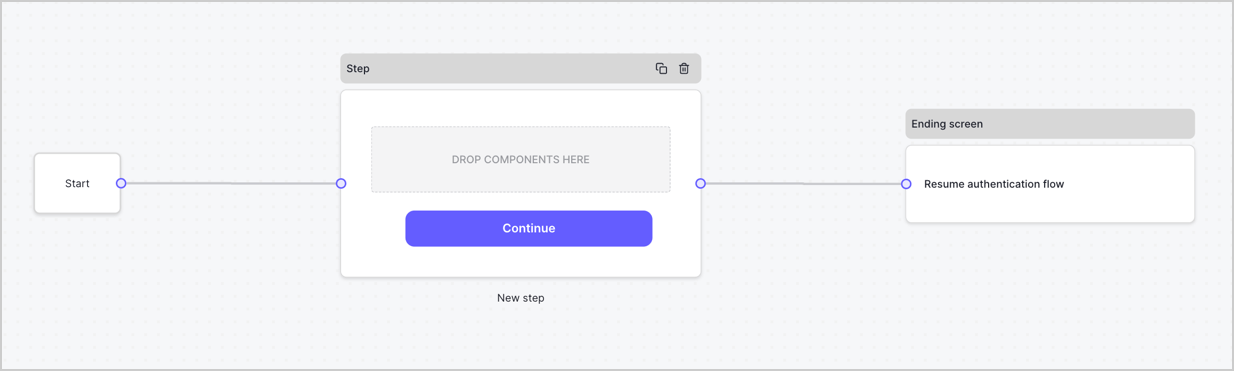
By default, a new form contains a Start node, a Step node, and an Ending screen node.
The sections below outline how you can create a progressive profile form using nodes and flows, along with steps for adding your form to a [Post Login Action](/docs/customize/actions/explore-triggers/signup-and-login-triggers/login-trigger).
## Create a form from scratch
Follow these steps to create a form to gather information:
1. Open the Form editor by selecting **Auth0 Dashboard > Actions > Forms.**
2. Select **Create Form** > **Start from scratch**.
By default, a new form contains a Start node, a Step node, and an Ending screen node.
 ### Configure the Step node
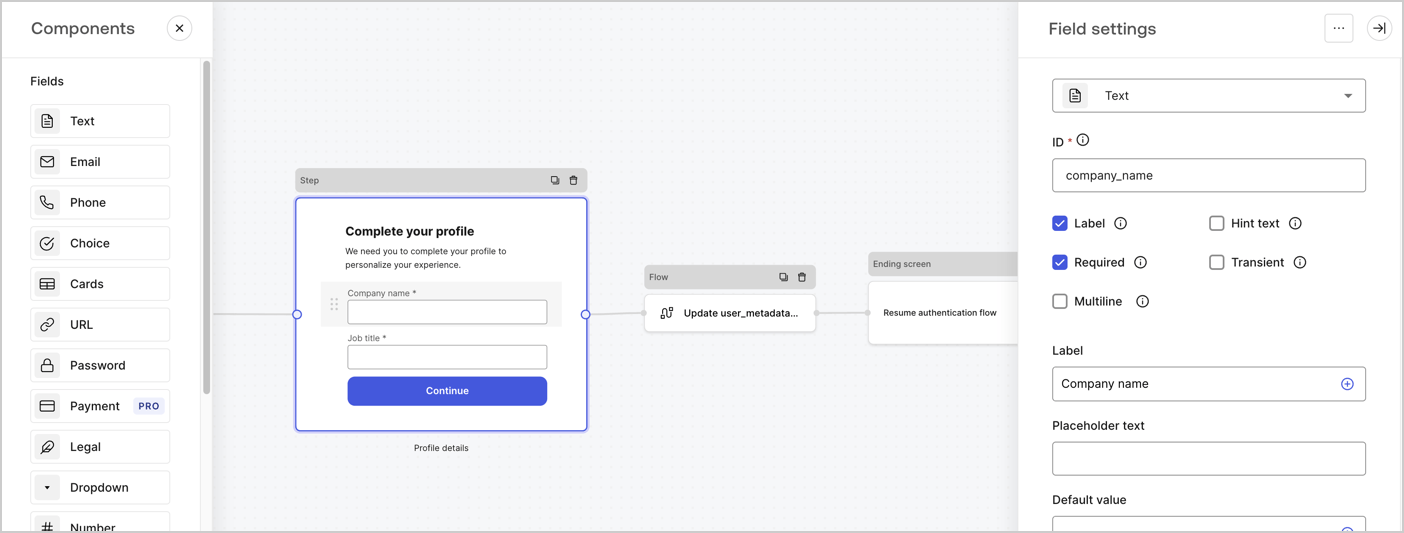
The Step node is the graphical interface visible to users. Add [Fields](/docs/customize/forms/nodes-and-components) to the Step node to collect the user's company name and job title values by following these steps:
1. Drag a **Rich text** field from the **Components menu** into the **Step** node.
* **Rich text**: Enter a custom message.
* **Example**: `Complete your profile! We need you to complete your profile to personalize your experience.`
* Select **Save**.
2. Drag a **Text** field into the **Step** node.
* **ID**: Enter `company_name`.
* **Label**: Enable the checkbox.
* **Label**: Enter `Company name`.
* **Required**: Enable the checkbox.
* Select **Save**.
3. Drag a **Text** field into the **Step** node.
1. **ID**: Enter `job_title`.
2. **Label**: Enter `Job title`.
3. **Label**: Enable the checkbox.
4. **Required**: Enable the checkbox.
5. Select **Save**.
4. Select **Publish** to save.
### Configure the Step node
The Step node is the graphical interface visible to users. Add [Fields](/docs/customize/forms/nodes-and-components) to the Step node to collect the user's company name and job title values by following these steps:
1. Drag a **Rich text** field from the **Components menu** into the **Step** node.
* **Rich text**: Enter a custom message.
* **Example**: `Complete your profile! We need you to complete your profile to personalize your experience.`
* Select **Save**.
2. Drag a **Text** field into the **Step** node.
* **ID**: Enter `company_name`.
* **Label**: Enable the checkbox.
* **Label**: Enter `Company name`.
* **Required**: Enable the checkbox.
* Select **Save**.
3. Drag a **Text** field into the **Step** node.
1. **ID**: Enter `job_title`.
2. **Label**: Enter `Job title`.
3. **Label**: Enable the checkbox.
4. **Required**: Enable the checkbox.
5. Select **Save**.
4. Select **Publish** to save.
 ### Configure the flow node
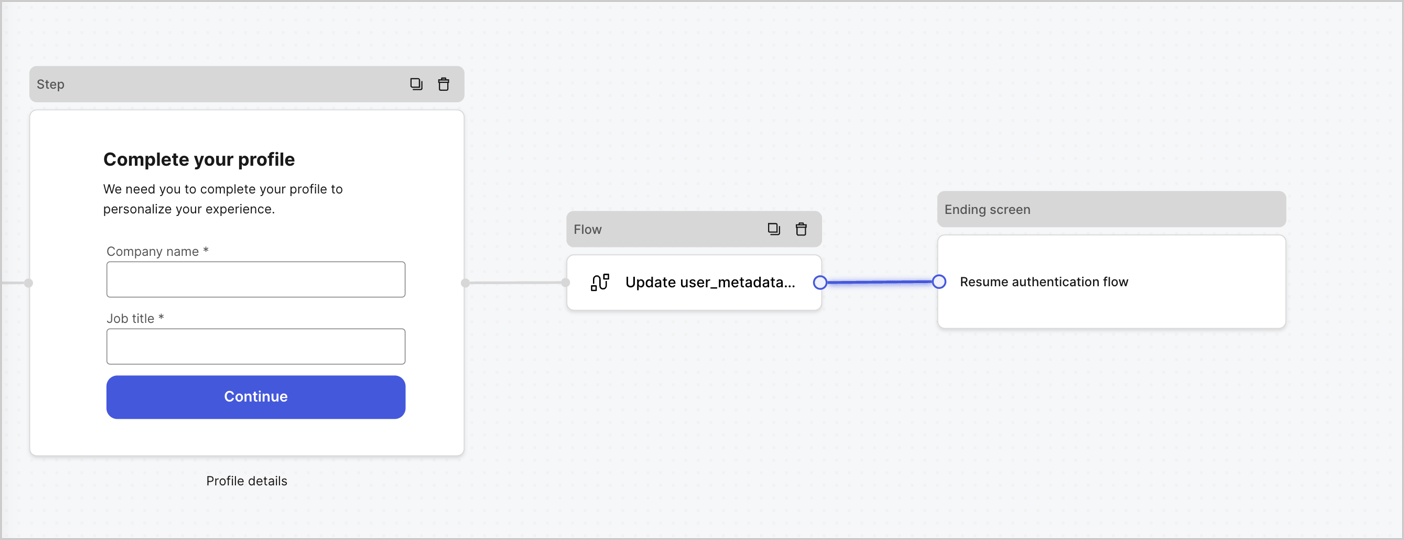
Add a **Flow** node after the **Step** node to update the `user_metadata` and resume the authentication flow by following these steps:
1. Select **Flow** from the bottom of the Form editor.
2. Remove the existing link between the **Step** and **Ending Screen** nodes.
3. Select the new **Flow** > **Click to add a flow** > **Create a new flow.**
* Enter `Update user_metadata` in the **Name** field.
* Select **Create**.
* Select **Save**.
4. Link the **Flow** node to the **Step** and **Ending Screen** nodes as pictured below.
5. Select **Publish** to save.
### Configure the flow node
Add a **Flow** node after the **Step** node to update the `user_metadata` and resume the authentication flow by following these steps:
1. Select **Flow** from the bottom of the Form editor.
2. Remove the existing link between the **Step** and **Ending Screen** nodes.
3. Select the new **Flow** > **Click to add a flow** > **Create a new flow.**
* Enter `Update user_metadata` in the **Name** field.
* Select **Create**.
* Select **Save**.
4. Link the **Flow** node to the **Step** and **Ending Screen** nodes as pictured below.
5. Select **Publish** to save.
 Add an Auth0 Update user action to the flow by following these steps:
1. Select the **Update user\_metadata** flow, then select the **Edit Flow** to open the Flow editor in a new tab.
2. Below the **Start** action, select the **+** icon to add an **Update user** action. Complete the fields below, then select **Save** to continue.
* **Connection**: Select from the dropdown the Vault connection to your M2M application.
* **User ID**: Enter `{{context.user.user_id}}`.
* **Body**: Copy and paste the following code to update the user\_metadata with `job_title` and `company_name` properties.
```json lines theme={null}
{
"user_metadata": {
"job_title": "{{fields.job_title}}",
"company_name": "{{fields.company_name}}"
}
}
```
* Select **Save**.
3. Select **Publish** to save.
Add an Auth0 Update user action to the flow by following these steps:
1. Select the **Update user\_metadata** flow, then select the **Edit Flow** to open the Flow editor in a new tab.
2. Below the **Start** action, select the **+** icon to add an **Update user** action. Complete the fields below, then select **Save** to continue.
* **Connection**: Select from the dropdown the Vault connection to your M2M application.
* **User ID**: Enter `{{context.user.user_id}}`.
* **Body**: Copy and paste the following code to update the user\_metadata with `job_title` and `company_name` properties.
```json lines theme={null}
{
"user_metadata": {
"job_title": "{{fields.job_title}}",
"company_name": "{{fields.company_name}}"
}
}
```
* Select **Save**.
3. Select **Publish** to save.
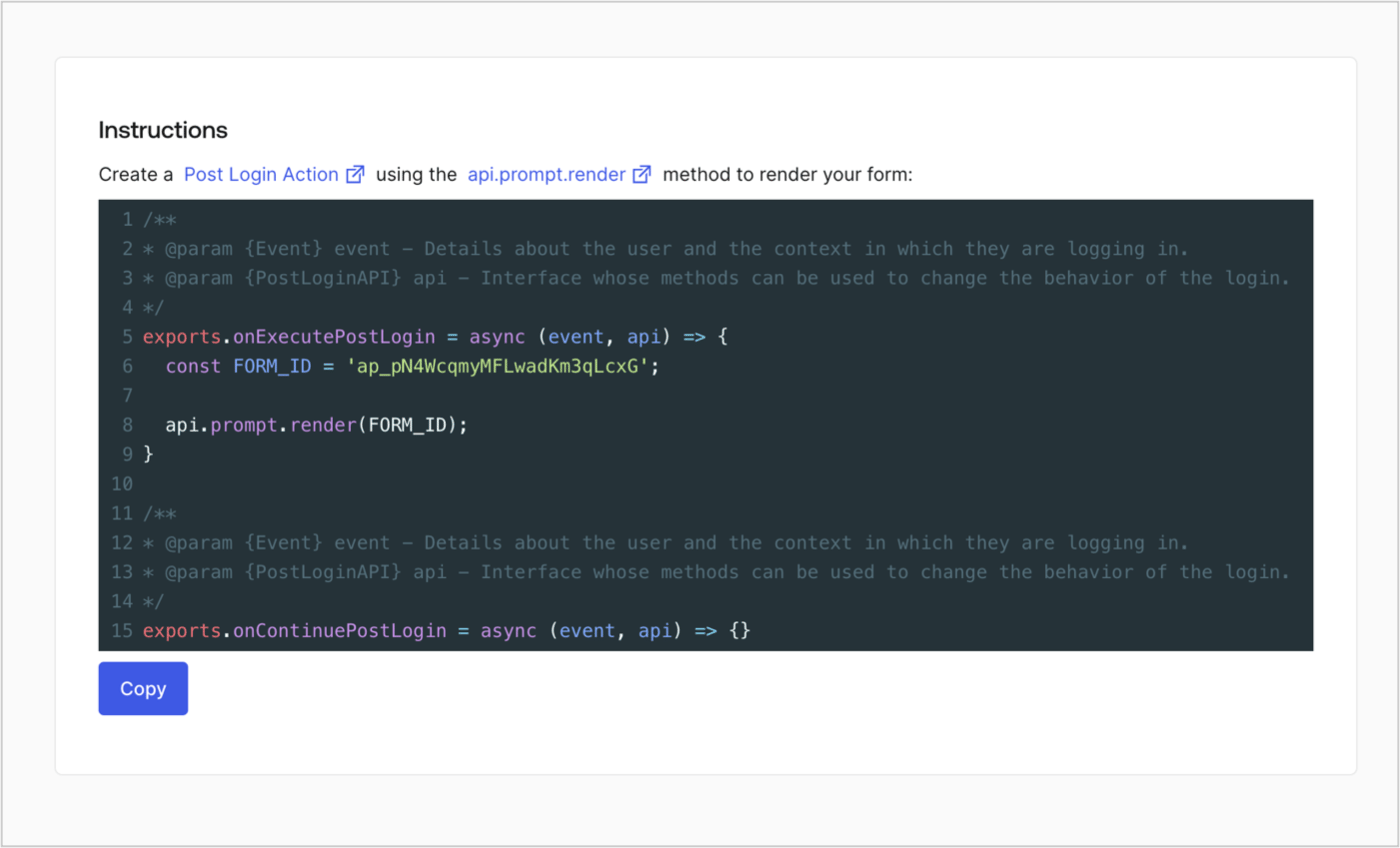
 ### Retrieve the form render code
Retrieve the form render code to visually render the form with a custom Post Login Action by following these steps:
* From the Form editor, select **`<> Render`**.
* Select **Copy**.
### Retrieve the form render code
Retrieve the form render code to visually render the form with a custom Post Login Action by following these steps:
* From the Form editor, select **`<> Render`**.
* Select **Copy**.
 ## Create a Post Login Action
Create a post-login Action to render your form by following these steps:
1. Navigate to **Auth0 Dashboard > Actions > Flows > Login.**
2. Select the **+** icon and select **Build from scratch**:
* **Name**: Enter `Render Progressive Profile Form`.
* **Trigger**: Select `Login / Post Login`.
* **Runtime**: Select the recommended version.
3. Select **Create**.
To configure the post-login Action:
1. Delete the existing code from the Code editor.
2. Paste the form embed code into the Code editor.
3. Edit the code to define the conditional logic that will render the form.
```javascript lines theme={null}
/**
* @param {Event} event - Details about the user and the context in which they are logging in.
* @param {PostLoginAPI} api - Interface whose methods can be used to change the behavior of the login.
*/
exports.onExecutePostLogin = async (event, api) => {
const FORM_ID = 'REPLACE_WITH_YOUR_FORM_ID';
if (
event.stats.logins_count > 2 &&
!event.user.user_metadata.company_name &&
!event.user.user_metadata.job_title
) {
api.prompt.render(FORM_ID);
}
}
exports.onContinuePostLogin = async (event, api) => { }
```
The example code above will render the form when a user has a login count > 2 and is missing the user metadata company\_name and job\_title properties.
4. Select **Deploy.**
5. Drag and Drop the **Render Progressive Profile Form** Action to the **Login** flow.
## Create a Post Login Action
Create a post-login Action to render your form by following these steps:
1. Navigate to **Auth0 Dashboard > Actions > Flows > Login.**
2. Select the **+** icon and select **Build from scratch**:
* **Name**: Enter `Render Progressive Profile Form`.
* **Trigger**: Select `Login / Post Login`.
* **Runtime**: Select the recommended version.
3. Select **Create**.
To configure the post-login Action:
1. Delete the existing code from the Code editor.
2. Paste the form embed code into the Code editor.
3. Edit the code to define the conditional logic that will render the form.
```javascript lines theme={null}
/**
* @param {Event} event - Details about the user and the context in which they are logging in.
* @param {PostLoginAPI} api - Interface whose methods can be used to change the behavior of the login.
*/
exports.onExecutePostLogin = async (event, api) => {
const FORM_ID = 'REPLACE_WITH_YOUR_FORM_ID';
if (
event.stats.logins_count > 2 &&
!event.user.user_metadata.company_name &&
!event.user.user_metadata.job_title
) {
api.prompt.render(FORM_ID);
}
}
exports.onContinuePostLogin = async (event, api) => { }
```
The example code above will render the form when a user has a login count > 2 and is missing the user metadata company\_name and job\_title properties.
4. Select **Deploy.**
5. Drag and Drop the **Render Progressive Profile Form** Action to the **Login** flow.
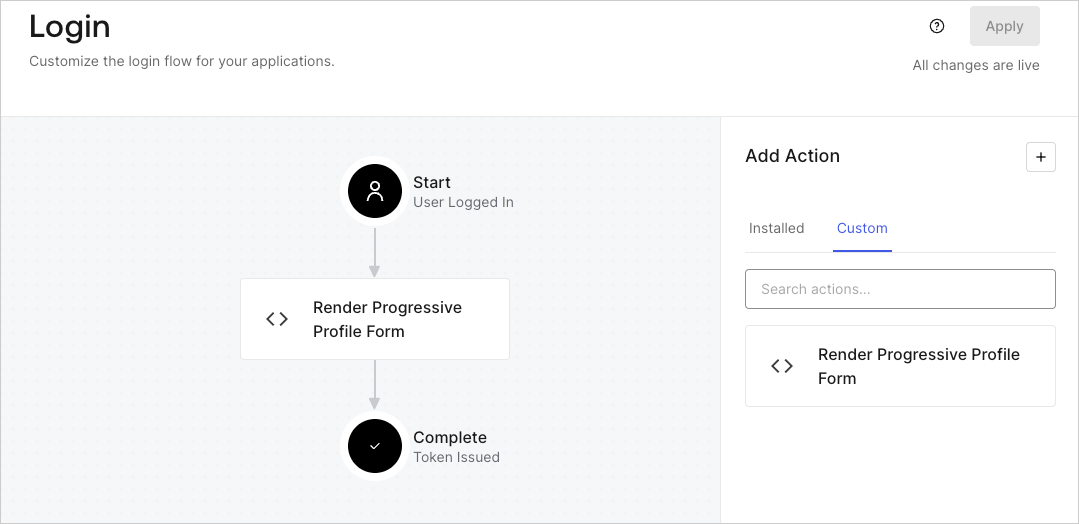 6. Select **Apply**.
### Test implementation
Test the implementation by following these steps:
1. Log in with an existing user whose login count is greater than 2 and their `user_metadata` attributes `company_name` and `job_title` have no values.
2. The post-login action in the Login flow will render the form and prompt for the information.
3. Select **Auth0 Dashboard > User Management > Users,** locate the user and verify that the `user_metadata` attributes `company_name` and `job_title` contain information.
6. Select **Apply**.
### Test implementation
Test the implementation by following these steps:
1. Log in with an existing user whose login count is greater than 2 and their `user_metadata` attributes `company_name` and `job_title` have no values.
2. The post-login action in the Login flow will render the form and prompt for the information.
3. Select **Auth0 Dashboard > User Management > Users,** locate the user and verify that the `user_metadata` attributes `company_name` and `job_title` contain information.