> ## Documentation Index
> Fetch the complete documentation index at: https://docs-dev-feat-docs-5521-google-one-tap.mintlify.site/llms.txt
> Use this file to discover all available pages before exploring further.

> Configure an update policy form using Forms for Actions

# Use Cases: Configure an update policy form using Forms

<Card title="Before you start">
  1. Create a [Machine-to-Machine Application](/docs/get-started/auth0-overview/create-applications/machine-to-machine-apps) with the following scopes enabled:

  * `read:users`
  * `update:users`
  * `create:users`
  * `read:users_app_metadata`
  * `update:users_app_metadata`
  * `create:users_app_metadata`

  2. Add a [Vault connection](/docs/customize/forms/vault) using the M2M application credentials.
</Card>

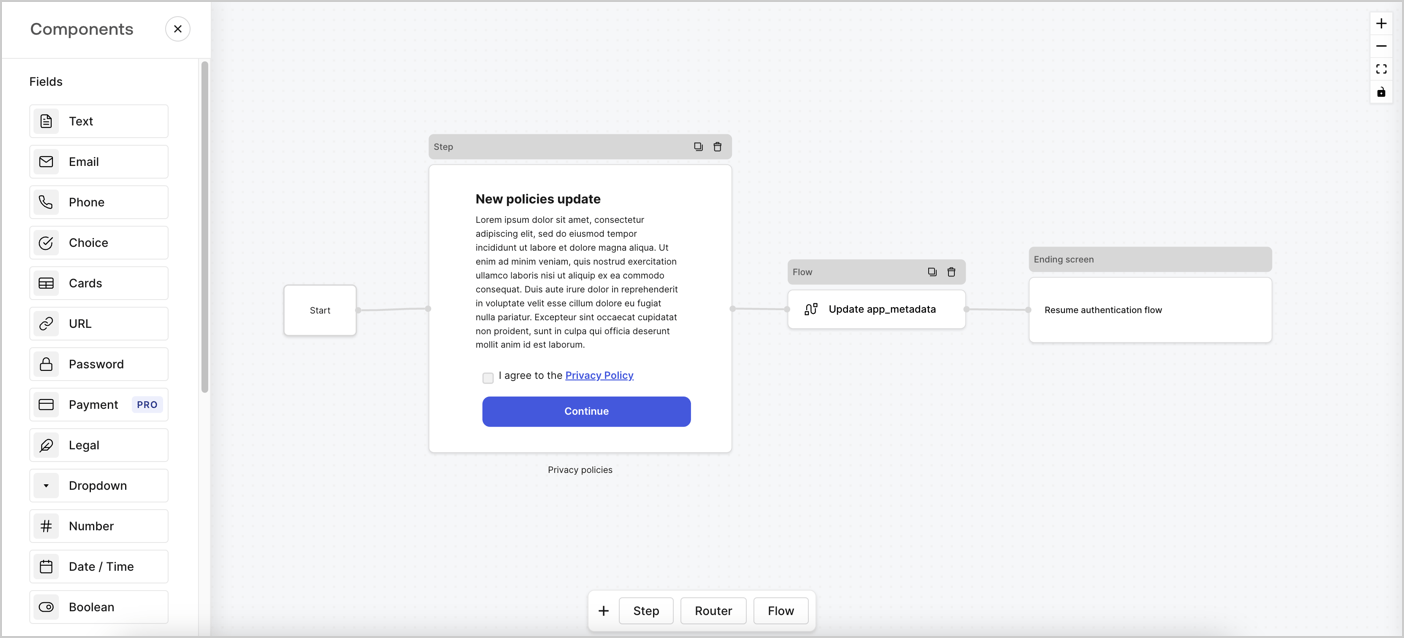
Forms for Actions allows you to create custom privacy policies flows and store the consent under the `app_metadata` object.
<Frame>
  <img src="https://mintcdn.com/docs-dev-feat-docs-5521-google-one-tap/eAGfNiRUKt8RcAjs/docs/images/cdy7uua7fh8z/6i68dMvHDTijfRmSgN1x8Q/ad900e7d4c0fb34645921435472b8684/privavy-policy-form.png?fit=max&auto=format&n=eAGfNiRUKt8RcAjs&q=85&s=aa00c6a02a5b2917281df3b227288b7b" alt="Dashboard > Actions > Forms > Privacy policy use case" data-og-width="1404" width="1404" data-og-height="638" height="638" data-path="docs/images/cdy7uua7fh8z/6i68dMvHDTijfRmSgN1x8Q/ad900e7d4c0fb34645921435472b8684/privavy-policy-form.png" data-optimize="true" data-opv="3" srcset="https://mintcdn.com/docs-dev-feat-docs-5521-google-one-tap/eAGfNiRUKt8RcAjs/docs/images/cdy7uua7fh8z/6i68dMvHDTijfRmSgN1x8Q/ad900e7d4c0fb34645921435472b8684/privavy-policy-form.png?w=280&fit=max&auto=format&n=eAGfNiRUKt8RcAjs&q=85&s=22a021ae01134ba902399063e59d00f2 280w, https://mintcdn.com/docs-dev-feat-docs-5521-google-one-tap/eAGfNiRUKt8RcAjs/docs/images/cdy7uua7fh8z/6i68dMvHDTijfRmSgN1x8Q/ad900e7d4c0fb34645921435472b8684/privavy-policy-form.png?w=560&fit=max&auto=format&n=eAGfNiRUKt8RcAjs&q=85&s=0628258f42cb106d3792fd51b5b1d05e 560w, https://mintcdn.com/docs-dev-feat-docs-5521-google-one-tap/eAGfNiRUKt8RcAjs/docs/images/cdy7uua7fh8z/6i68dMvHDTijfRmSgN1x8Q/ad900e7d4c0fb34645921435472b8684/privavy-policy-form.png?w=840&fit=max&auto=format&n=eAGfNiRUKt8RcAjs&q=85&s=9be3c37cd8dc408bc75a8014971ecd97 840w, https://mintcdn.com/docs-dev-feat-docs-5521-google-one-tap/eAGfNiRUKt8RcAjs/docs/images/cdy7uua7fh8z/6i68dMvHDTijfRmSgN1x8Q/ad900e7d4c0fb34645921435472b8684/privavy-policy-form.png?w=1100&fit=max&auto=format&n=eAGfNiRUKt8RcAjs&q=85&s=8a8b4c1bd8f4ee41a3bdc5800a2f44cc 1100w, https://mintcdn.com/docs-dev-feat-docs-5521-google-one-tap/eAGfNiRUKt8RcAjs/docs/images/cdy7uua7fh8z/6i68dMvHDTijfRmSgN1x8Q/ad900e7d4c0fb34645921435472b8684/privavy-policy-form.png?w=1650&fit=max&auto=format&n=eAGfNiRUKt8RcAjs&q=85&s=9ba3dcb1e8ea80e256131304226ae39a 1650w, https://mintcdn.com/docs-dev-feat-docs-5521-google-one-tap/eAGfNiRUKt8RcAjs/docs/images/cdy7uua7fh8z/6i68dMvHDTijfRmSgN1x8Q/ad900e7d4c0fb34645921435472b8684/privavy-policy-form.png?w=2500&fit=max&auto=format&n=eAGfNiRUKt8RcAjs&q=85&s=4dc5bfab7b6cca460d7400fd11663a4c 2500w" />
</Frame>

The sections below outline how you can create an Update Policy form using nodes and flows, along with steps for adding your form to a [Post Login](/docs/customize/actions/explore-triggers/signup-and-login-triggers/login-trigger) Action.

## Create a form from scratch

Follow these steps to create a form to gather information:

1. Open the Form editor by selecting **Auth0 Dashboard > Actions > Forms.**
2. Select **Create Form** > **Start from scratch**.

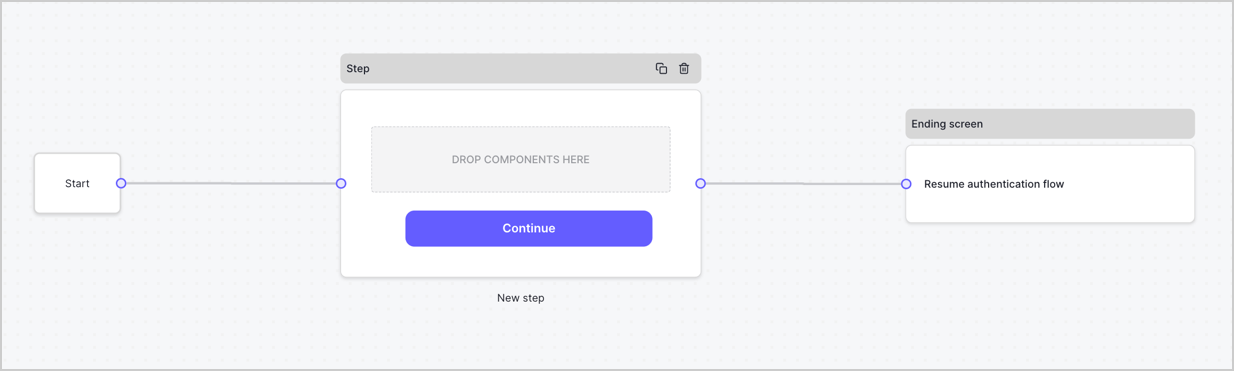
By default, a new form contains a Start node, a Step node, and an Ending screen node.
<Frame>
  <img src="https://mintcdn.com/docs-dev-feat-docs-5521-google-one-tap/JUb8XEQgqcphKWyM/docs/images/cdy7uua7fh8z/2TZ9jSjgEcARFpULI6hz4R/a4319a1bd482f2ee5cc23100fdb2f42c/New-form-Forms-for-action-use-case.png?fit=max&auto=format&n=JUb8XEQgqcphKWyM&q=85&s=724167696cdb880f565b1ac3c04d90a9" alt="Dashboard > Forms > Use Cases > Form" data-og-width="1234" width="1234" data-og-height="371" height="371" data-path="docs/images/cdy7uua7fh8z/2TZ9jSjgEcARFpULI6hz4R/a4319a1bd482f2ee5cc23100fdb2f42c/New-form-Forms-for-action-use-case.png" data-optimize="true" data-opv="3" srcset="https://mintcdn.com/docs-dev-feat-docs-5521-google-one-tap/JUb8XEQgqcphKWyM/docs/images/cdy7uua7fh8z/2TZ9jSjgEcARFpULI6hz4R/a4319a1bd482f2ee5cc23100fdb2f42c/New-form-Forms-for-action-use-case.png?w=280&fit=max&auto=format&n=JUb8XEQgqcphKWyM&q=85&s=929742cdb012de9121155ac51556544d 280w, https://mintcdn.com/docs-dev-feat-docs-5521-google-one-tap/JUb8XEQgqcphKWyM/docs/images/cdy7uua7fh8z/2TZ9jSjgEcARFpULI6hz4R/a4319a1bd482f2ee5cc23100fdb2f42c/New-form-Forms-for-action-use-case.png?w=560&fit=max&auto=format&n=JUb8XEQgqcphKWyM&q=85&s=2087e7694a7d63ff5dbadeaf3b7ee61e 560w, https://mintcdn.com/docs-dev-feat-docs-5521-google-one-tap/JUb8XEQgqcphKWyM/docs/images/cdy7uua7fh8z/2TZ9jSjgEcARFpULI6hz4R/a4319a1bd482f2ee5cc23100fdb2f42c/New-form-Forms-for-action-use-case.png?w=840&fit=max&auto=format&n=JUb8XEQgqcphKWyM&q=85&s=545e0bafd7dd7a15fcaaf5d21d9dab6d 840w, https://mintcdn.com/docs-dev-feat-docs-5521-google-one-tap/JUb8XEQgqcphKWyM/docs/images/cdy7uua7fh8z/2TZ9jSjgEcARFpULI6hz4R/a4319a1bd482f2ee5cc23100fdb2f42c/New-form-Forms-for-action-use-case.png?w=1100&fit=max&auto=format&n=JUb8XEQgqcphKWyM&q=85&s=cff300306cc13025078851c26e600d6c 1100w, https://mintcdn.com/docs-dev-feat-docs-5521-google-one-tap/JUb8XEQgqcphKWyM/docs/images/cdy7uua7fh8z/2TZ9jSjgEcARFpULI6hz4R/a4319a1bd482f2ee5cc23100fdb2f42c/New-form-Forms-for-action-use-case.png?w=1650&fit=max&auto=format&n=JUb8XEQgqcphKWyM&q=85&s=e6b10d31d24b592f7693e0bbb76bd727 1650w, https://mintcdn.com/docs-dev-feat-docs-5521-google-one-tap/JUb8XEQgqcphKWyM/docs/images/cdy7uua7fh8z/2TZ9jSjgEcARFpULI6hz4R/a4319a1bd482f2ee5cc23100fdb2f42c/New-form-Forms-for-action-use-case.png?w=2500&fit=max&auto=format&n=JUb8XEQgqcphKWyM&q=85&s=8d38da417779154dd068c6a67c917620 2500w" />
</Frame>

### Configure the Step node

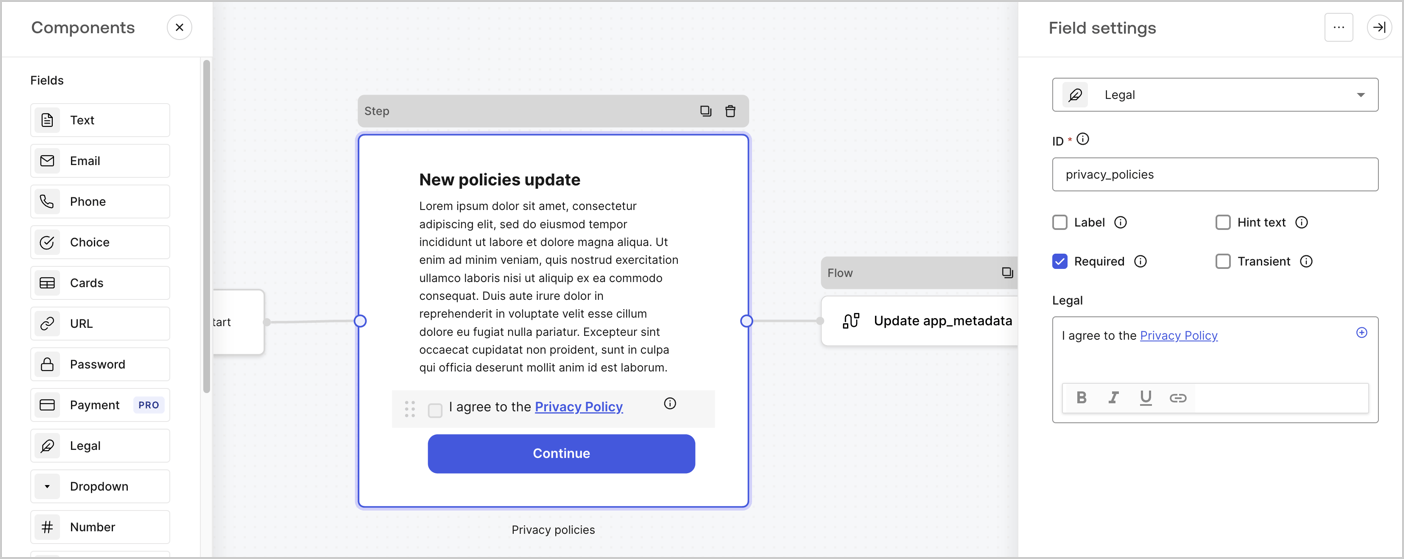
The Step node is the graphical interface visible to users. Add [Fields](/docs/customize/forms/nodes-and-components) to the Step node to collect the new agreement acceptance value by following these steps:

1. Drag a **Rich text** field from the **Components menu** into the **Step** node.

   * **Rich text**: Enter a description of your privacy policies updates.
   * Select **Save**.
2. Drag a **Legal** field into the **Step** node.

   * **ID**: Enter `privacy_policies`.
   * **Required**: Enable the checkbox.
   * **Legal**: Enter `I agree to the Privacy Policy`.
   * Select **Save**.
3. Select **Publish** to save.
<Frame>
  <img src="https://mintcdn.com/docs-dev-feat-docs-5521-google-one-tap/13GCwqPwgonTxyHP/docs/images/cdy7uua7fh8z/59zFFjQjAnjogkc2QGIqqJ/0ad66b1b636544122aa4e65968b76c2c/privacy-policy-step-node.png?fit=max&auto=format&n=13GCwqPwgonTxyHP&q=85&s=4e075e4df6522ac944b61ff79875165b" alt="Dashboard > Actions > Forms > Use case privacy policy step node" data-og-width="1404" width="1404" data-og-height="559" height="559" data-path="docs/images/cdy7uua7fh8z/59zFFjQjAnjogkc2QGIqqJ/0ad66b1b636544122aa4e65968b76c2c/privacy-policy-step-node.png" data-optimize="true" data-opv="3" srcset="https://mintcdn.com/docs-dev-feat-docs-5521-google-one-tap/13GCwqPwgonTxyHP/docs/images/cdy7uua7fh8z/59zFFjQjAnjogkc2QGIqqJ/0ad66b1b636544122aa4e65968b76c2c/privacy-policy-step-node.png?w=280&fit=max&auto=format&n=13GCwqPwgonTxyHP&q=85&s=61f418bf2fdb658e655cc3bb35cec649 280w, https://mintcdn.com/docs-dev-feat-docs-5521-google-one-tap/13GCwqPwgonTxyHP/docs/images/cdy7uua7fh8z/59zFFjQjAnjogkc2QGIqqJ/0ad66b1b636544122aa4e65968b76c2c/privacy-policy-step-node.png?w=560&fit=max&auto=format&n=13GCwqPwgonTxyHP&q=85&s=e1f79b7feb05e3b7ff6c3eb0434abf0f 560w, https://mintcdn.com/docs-dev-feat-docs-5521-google-one-tap/13GCwqPwgonTxyHP/docs/images/cdy7uua7fh8z/59zFFjQjAnjogkc2QGIqqJ/0ad66b1b636544122aa4e65968b76c2c/privacy-policy-step-node.png?w=840&fit=max&auto=format&n=13GCwqPwgonTxyHP&q=85&s=f9c713fad4dd52f34e42c7ae6cfbdea2 840w, https://mintcdn.com/docs-dev-feat-docs-5521-google-one-tap/13GCwqPwgonTxyHP/docs/images/cdy7uua7fh8z/59zFFjQjAnjogkc2QGIqqJ/0ad66b1b636544122aa4e65968b76c2c/privacy-policy-step-node.png?w=1100&fit=max&auto=format&n=13GCwqPwgonTxyHP&q=85&s=75fb0b47c10e47d1d4ca08504bb3ba04 1100w, https://mintcdn.com/docs-dev-feat-docs-5521-google-one-tap/13GCwqPwgonTxyHP/docs/images/cdy7uua7fh8z/59zFFjQjAnjogkc2QGIqqJ/0ad66b1b636544122aa4e65968b76c2c/privacy-policy-step-node.png?w=1650&fit=max&auto=format&n=13GCwqPwgonTxyHP&q=85&s=09b71901b91c1114f632b49dd30466de 1650w, https://mintcdn.com/docs-dev-feat-docs-5521-google-one-tap/13GCwqPwgonTxyHP/docs/images/cdy7uua7fh8z/59zFFjQjAnjogkc2QGIqqJ/0ad66b1b636544122aa4e65968b76c2c/privacy-policy-step-node.png?w=2500&fit=max&auto=format&n=13GCwqPwgonTxyHP&q=85&s=7ad6c3b9a81f19ae483e55a4e43e2194 2500w" />
</Frame>

### Configure the Flow node

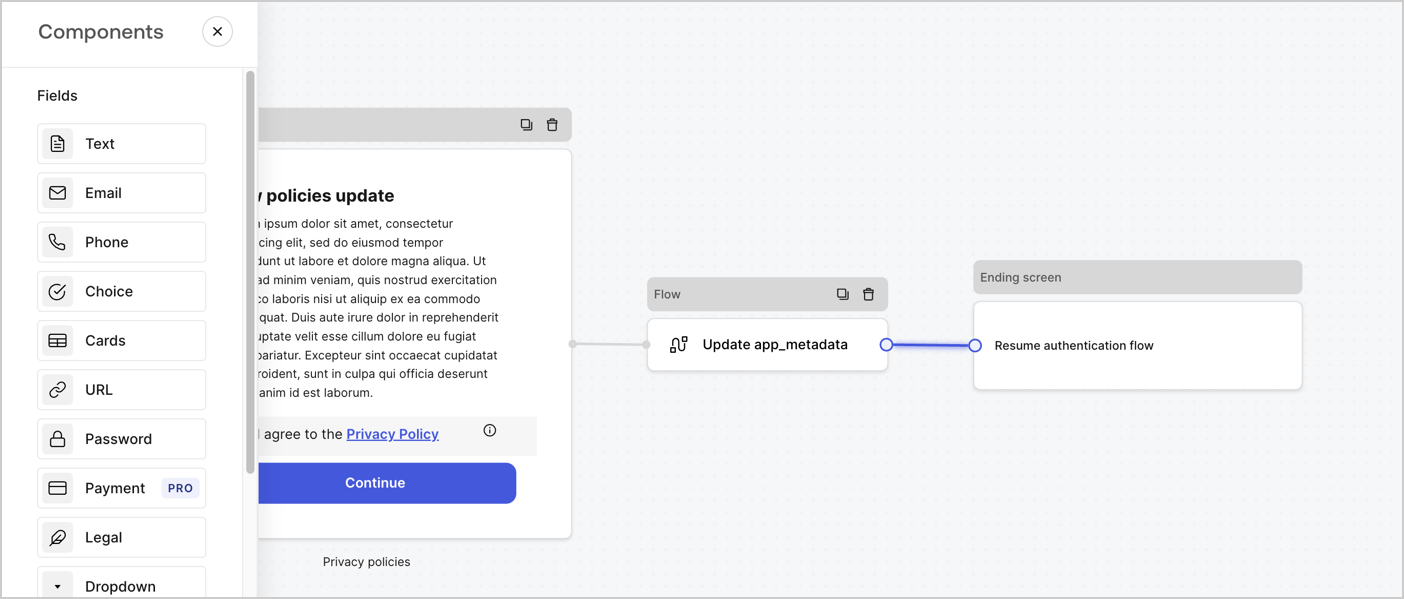
Add a **Flow** node after the **Step** node to update the `app_metadata` and resume the authentication flow by following these steps:

1. Select **Flow** from the bottom of the Form editor.
2. Remove the existing link between the **Step** and **Ending Screen** nodes.
3. Select the new **Flow** > **Click to add a flow** > **Create a new flow.**

   * Enter `Update app_metadata` in the **Name** field.
   * Select **Create**.
   * Select **Save**.
4. Link the **Flow** node to the **Step** and **Ending Screen** nodes as pictured below.
5. Select **Publish** to save.
<Frame>
  <img src="https://mintcdn.com/docs-dev-feat-docs-5521-google-one-tap/eAGfNiRUKt8RcAjs/docs/images/cdy7uua7fh8z/6YIkzm7SrpM9LW76AXuRzh/353c518fe82bbaa440836da1d83596d6/link-policies.png?fit=max&auto=format&n=eAGfNiRUKt8RcAjs&q=85&s=ed0a8d603e101dd40f2451c2f2a01a5b" alt="Dashboard > Actions > Forms > Form" data-og-width="1404" width="1404" data-og-height="599" height="599" data-path="docs/images/cdy7uua7fh8z/6YIkzm7SrpM9LW76AXuRzh/353c518fe82bbaa440836da1d83596d6/link-policies.png" data-optimize="true" data-opv="3" srcset="https://mintcdn.com/docs-dev-feat-docs-5521-google-one-tap/eAGfNiRUKt8RcAjs/docs/images/cdy7uua7fh8z/6YIkzm7SrpM9LW76AXuRzh/353c518fe82bbaa440836da1d83596d6/link-policies.png?w=280&fit=max&auto=format&n=eAGfNiRUKt8RcAjs&q=85&s=6feb11472a6691a9432c7a99082634e1 280w, https://mintcdn.com/docs-dev-feat-docs-5521-google-one-tap/eAGfNiRUKt8RcAjs/docs/images/cdy7uua7fh8z/6YIkzm7SrpM9LW76AXuRzh/353c518fe82bbaa440836da1d83596d6/link-policies.png?w=560&fit=max&auto=format&n=eAGfNiRUKt8RcAjs&q=85&s=6f8e165d35eeb24cc9dd7caa485387f9 560w, https://mintcdn.com/docs-dev-feat-docs-5521-google-one-tap/eAGfNiRUKt8RcAjs/docs/images/cdy7uua7fh8z/6YIkzm7SrpM9LW76AXuRzh/353c518fe82bbaa440836da1d83596d6/link-policies.png?w=840&fit=max&auto=format&n=eAGfNiRUKt8RcAjs&q=85&s=681043812e5b3a78b78a4f58659cc01b 840w, https://mintcdn.com/docs-dev-feat-docs-5521-google-one-tap/eAGfNiRUKt8RcAjs/docs/images/cdy7uua7fh8z/6YIkzm7SrpM9LW76AXuRzh/353c518fe82bbaa440836da1d83596d6/link-policies.png?w=1100&fit=max&auto=format&n=eAGfNiRUKt8RcAjs&q=85&s=8f4879a2316ba11f747307ea5bf2f210 1100w, https://mintcdn.com/docs-dev-feat-docs-5521-google-one-tap/eAGfNiRUKt8RcAjs/docs/images/cdy7uua7fh8z/6YIkzm7SrpM9LW76AXuRzh/353c518fe82bbaa440836da1d83596d6/link-policies.png?w=1650&fit=max&auto=format&n=eAGfNiRUKt8RcAjs&q=85&s=cd3b98df40f33fc92bf95f73ef43af7a 1650w, https://mintcdn.com/docs-dev-feat-docs-5521-google-one-tap/eAGfNiRUKt8RcAjs/docs/images/cdy7uua7fh8z/6YIkzm7SrpM9LW76AXuRzh/353c518fe82bbaa440836da1d83596d6/link-policies.png?w=2500&fit=max&auto=format&n=eAGfNiRUKt8RcAjs&q=85&s=b90f743d9b72d369921c6cb9cf753dd9 2500w" />
</Frame>

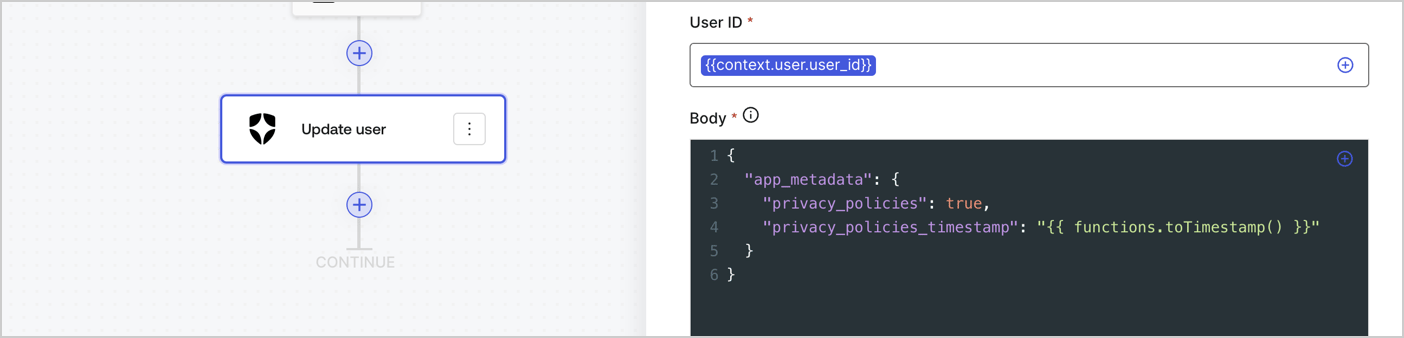
Add an Auth0 Update user action to the flow by following these steps:

1. Select the **Flow** **Update app\_metadata** > **Edit flow** to open the Flow editor in a new tab.
2. Below the StartAction, select the **+** icon to add an **Update user** action. Complete the fields below, then select **Save** to continue.

   * **Connection**: Select from the dropdown the Vault connection to your M2M application.

   * **User ID**: Enter `{{context.user.user_id}}`.

   * **Body**: Copy and paste the following code to update the app\_metadata with the privacy\_policies and privacy\_policies\_timestamp properties.

     ```text lines theme={null}
     {
       "app_metadata": {
         "privacy_policies": true,
         "privacy_policies_timestamp": "{{ functions.toTimestamp() }}"
       }
     }
     ```

   * Select **Save**.
3. Select **Publish** to save.
<Frame>
  <img src="https://mintcdn.com/docs-dev-feat-docs-5521-google-one-tap/zeDlBUCl3UNsDP-j/docs/images/cdy7uua7fh8z/CvMNIwWrOUwaFW4X3G28p/1fb70ae57a20749d9ffaaba8dc0b7e26/update-user-privacy.png?fit=max&auto=format&n=zeDlBUCl3UNsDP-j&q=85&s=4f1635aad4ea49c74aeb90e2ae85a7c2" alt="Dashboard > Actions > Forms > User case privacy policy code" data-og-width="1404" width="1404" data-og-height="338" height="338" data-path="docs/images/cdy7uua7fh8z/CvMNIwWrOUwaFW4X3G28p/1fb70ae57a20749d9ffaaba8dc0b7e26/update-user-privacy.png" data-optimize="true" data-opv="3" srcset="https://mintcdn.com/docs-dev-feat-docs-5521-google-one-tap/zeDlBUCl3UNsDP-j/docs/images/cdy7uua7fh8z/CvMNIwWrOUwaFW4X3G28p/1fb70ae57a20749d9ffaaba8dc0b7e26/update-user-privacy.png?w=280&fit=max&auto=format&n=zeDlBUCl3UNsDP-j&q=85&s=97a51bd13f0a5c3967b07063530b5b56 280w, https://mintcdn.com/docs-dev-feat-docs-5521-google-one-tap/zeDlBUCl3UNsDP-j/docs/images/cdy7uua7fh8z/CvMNIwWrOUwaFW4X3G28p/1fb70ae57a20749d9ffaaba8dc0b7e26/update-user-privacy.png?w=560&fit=max&auto=format&n=zeDlBUCl3UNsDP-j&q=85&s=568822436c5bd0b8e72cd853d1335012 560w, https://mintcdn.com/docs-dev-feat-docs-5521-google-one-tap/zeDlBUCl3UNsDP-j/docs/images/cdy7uua7fh8z/CvMNIwWrOUwaFW4X3G28p/1fb70ae57a20749d9ffaaba8dc0b7e26/update-user-privacy.png?w=840&fit=max&auto=format&n=zeDlBUCl3UNsDP-j&q=85&s=94f6d278f831022af98a6ca1e4d0ec63 840w, https://mintcdn.com/docs-dev-feat-docs-5521-google-one-tap/zeDlBUCl3UNsDP-j/docs/images/cdy7uua7fh8z/CvMNIwWrOUwaFW4X3G28p/1fb70ae57a20749d9ffaaba8dc0b7e26/update-user-privacy.png?w=1100&fit=max&auto=format&n=zeDlBUCl3UNsDP-j&q=85&s=dc61e18a6d480154e72cba096084b685 1100w, https://mintcdn.com/docs-dev-feat-docs-5521-google-one-tap/zeDlBUCl3UNsDP-j/docs/images/cdy7uua7fh8z/CvMNIwWrOUwaFW4X3G28p/1fb70ae57a20749d9ffaaba8dc0b7e26/update-user-privacy.png?w=1650&fit=max&auto=format&n=zeDlBUCl3UNsDP-j&q=85&s=9ad3961536a905a5209031161e8b434f 1650w, https://mintcdn.com/docs-dev-feat-docs-5521-google-one-tap/zeDlBUCl3UNsDP-j/docs/images/cdy7uua7fh8z/CvMNIwWrOUwaFW4X3G28p/1fb70ae57a20749d9ffaaba8dc0b7e26/update-user-privacy.png?w=2500&fit=max&auto=format&n=zeDlBUCl3UNsDP-j&q=85&s=d4b1e374b7775ebc4c5debc5d662c4a6 2500w" />
</Frame>

<Callout icon="file-lines" color="#0EA5E9" iconType="regular">
  The flow **Update app\_metadata** adds a `privacy_policies true` value to the app`_metadata` object and also generates a timestamp with a [helper function.](/docs/customize/forms/variables)
</Callout>

## Retrieve the form render code

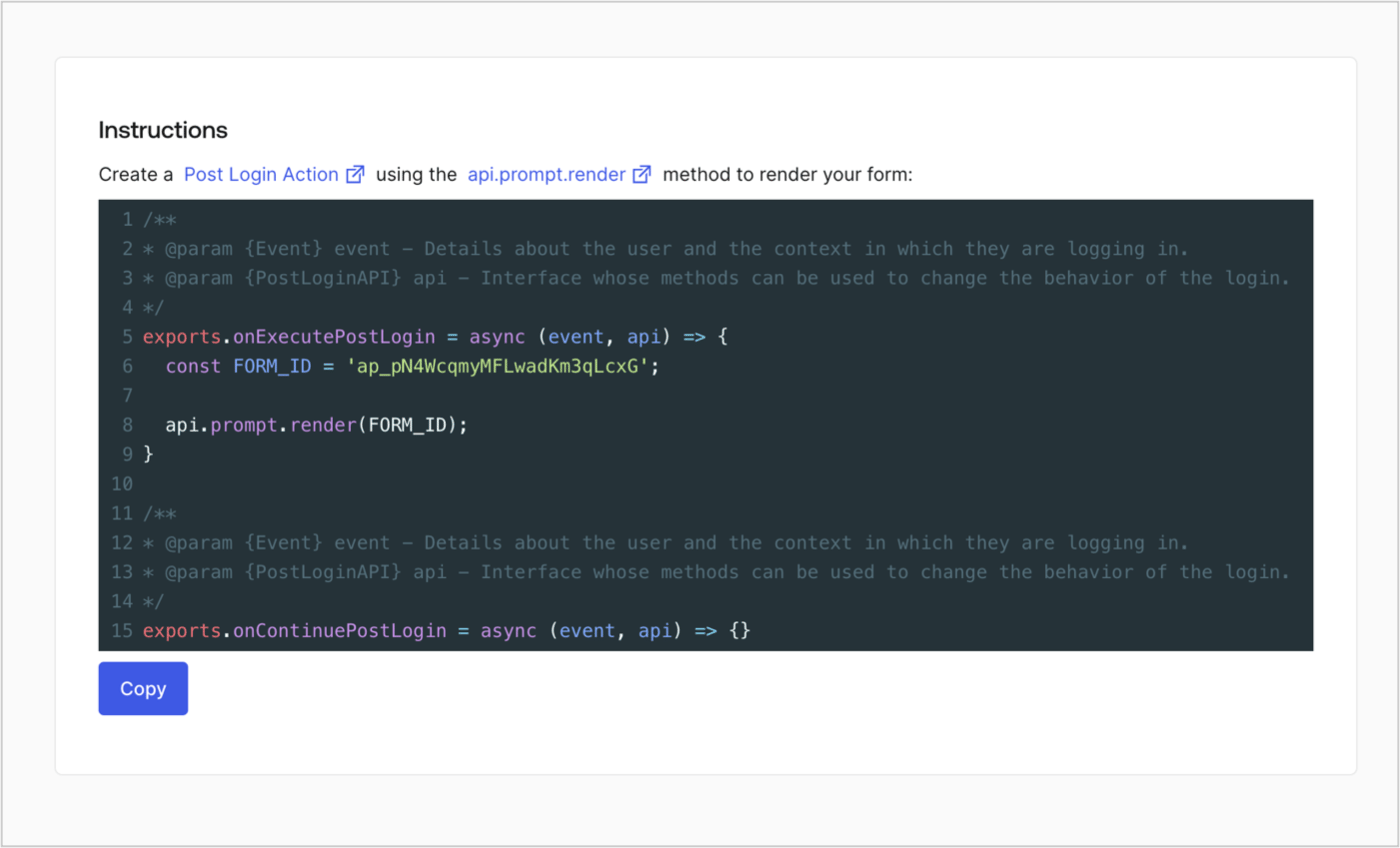
Retrieve your form render code to visually render the form with a custom Post Login Action by following these steps:

* From the Form editor, select **`<> Render`**.
* Select **Copy**.
<Frame>
  <img src="https://mintcdn.com/docs-dev-feat-docs-5521-google-one-tap/PR0hkPqOdvW2qWNQ/docs/images/cdy7uua7fh8z/2EIUzc539sq9lwoTKbjoJv/496a864c0fc44a782c9cadca119dbfb0/embed.png?fit=max&auto=format&n=PR0hkPqOdvW2qWNQ&q=85&s=60819ecffc798a257233ffb29bb9353c" alt="Dashboard > Actions > Forms > Form > Embed" data-og-width="1400" width="1400" data-og-height="848" height="848" data-path="docs/images/cdy7uua7fh8z/2EIUzc539sq9lwoTKbjoJv/496a864c0fc44a782c9cadca119dbfb0/embed.png" data-optimize="true" data-opv="3" srcset="https://mintcdn.com/docs-dev-feat-docs-5521-google-one-tap/PR0hkPqOdvW2qWNQ/docs/images/cdy7uua7fh8z/2EIUzc539sq9lwoTKbjoJv/496a864c0fc44a782c9cadca119dbfb0/embed.png?w=280&fit=max&auto=format&n=PR0hkPqOdvW2qWNQ&q=85&s=25e7fa05a6f2d08d31cfd11e6572a98d 280w, https://mintcdn.com/docs-dev-feat-docs-5521-google-one-tap/PR0hkPqOdvW2qWNQ/docs/images/cdy7uua7fh8z/2EIUzc539sq9lwoTKbjoJv/496a864c0fc44a782c9cadca119dbfb0/embed.png?w=560&fit=max&auto=format&n=PR0hkPqOdvW2qWNQ&q=85&s=775b49bb508fba7aa3a212974add708d 560w, https://mintcdn.com/docs-dev-feat-docs-5521-google-one-tap/PR0hkPqOdvW2qWNQ/docs/images/cdy7uua7fh8z/2EIUzc539sq9lwoTKbjoJv/496a864c0fc44a782c9cadca119dbfb0/embed.png?w=840&fit=max&auto=format&n=PR0hkPqOdvW2qWNQ&q=85&s=d4b587b139547f1adf6e8f3f7a721f59 840w, https://mintcdn.com/docs-dev-feat-docs-5521-google-one-tap/PR0hkPqOdvW2qWNQ/docs/images/cdy7uua7fh8z/2EIUzc539sq9lwoTKbjoJv/496a864c0fc44a782c9cadca119dbfb0/embed.png?w=1100&fit=max&auto=format&n=PR0hkPqOdvW2qWNQ&q=85&s=44f47be33282bf9cf80dce773b6edbab 1100w, https://mintcdn.com/docs-dev-feat-docs-5521-google-one-tap/PR0hkPqOdvW2qWNQ/docs/images/cdy7uua7fh8z/2EIUzc539sq9lwoTKbjoJv/496a864c0fc44a782c9cadca119dbfb0/embed.png?w=1650&fit=max&auto=format&n=PR0hkPqOdvW2qWNQ&q=85&s=f4e7e33ac97fb9543934064e2b50bfc7 1650w, https://mintcdn.com/docs-dev-feat-docs-5521-google-one-tap/PR0hkPqOdvW2qWNQ/docs/images/cdy7uua7fh8z/2EIUzc539sq9lwoTKbjoJv/496a864c0fc44a782c9cadca119dbfb0/embed.png?w=2500&fit=max&auto=format&n=PR0hkPqOdvW2qWNQ&q=85&s=2feee7d14857095b42262fcb7eef44d0 2500w" />
</Frame>

## Create a Post Login Action

Create a post-login Action to render your form by following these steps:

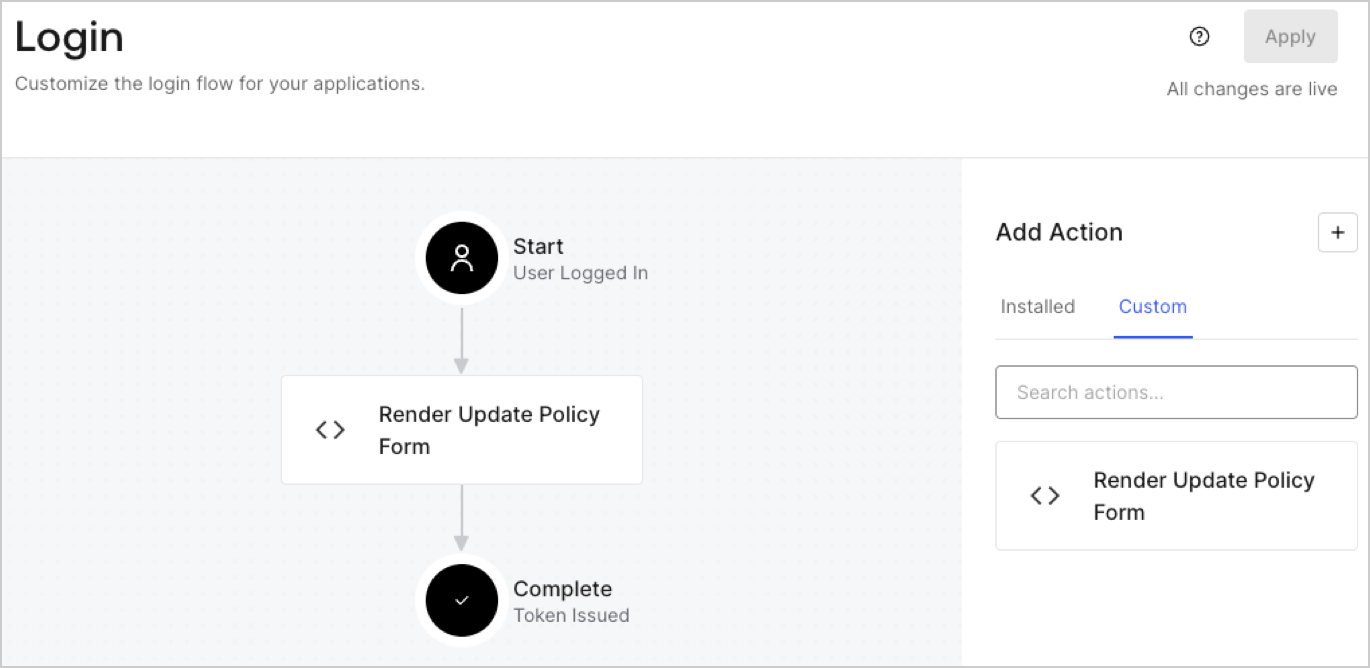
1. Navigate to **Auth0 Dashboard > Actions > Flows > Login.**
2. Select the **+** icon and Select **Build from scratch**:

   * **Name**: Enter `Render Update Policy Form`.
   * **Trigger**: Select `Login / Post Login`.
   * **Runtime**: Select the recommended version.
3. Select **Create**.

To configure the post-login Action:

1. Delete the existing code from the Code editor.
2. Paste the form render code into the Code editor.
3. Edit the code to define the conditional logic that will render the form.

   ```javascript lines theme={null}
   /**
   * @param {Event} event - Details about the user and the context in which they are logging in.
   * @param {PostLoginAPI} api - Interface whose methods can be used to change the behavior of the login.
   */
   exports.onExecutePostLogin = async (event, api) => {
     const FORM_ID = 'REPLACE_WITH_YOUR_FORM_ID';

     if (event.user.app_metadata.privacy_policies !== true) {
       api.prompt.render(FORM_ID);
     }
   }

   exports.onContinuePostLogin = async (event, api) => { }
   ```

   <Callout icon="file-lines" color="#0EA5E9" iconType="regular">
     The example code above will render the form when a user is missing the app metadata `privacy_policies` property.
   </Callout>
4. Select **Deploy.**
5. Drag and Drop the **Render Update Policy Form** Action to the **Login** flow.
   <Frame>
     <img src="https://mintcdn.com/docs-dev-feat-docs-5521-google-one-tap/Z3P41MkIN_lBt86r/docs/images/cdy7uua7fh8z/5TOwDgevZsBqd7yZynUYWU/41ca909dc3007aed4f40ff794a05efa5/postlogin.png?fit=max&auto=format&n=Z3P41MkIN_lBt86r&q=85&s=1345e4b869a0b1dbebed000fb85bef76" alt="Dashboard > Forms > Use Case > Render update policy form login action" data-og-width="1370" width="1370" data-og-height="668" height="668" data-path="docs/images/cdy7uua7fh8z/5TOwDgevZsBqd7yZynUYWU/41ca909dc3007aed4f40ff794a05efa5/postlogin.png" data-optimize="true" data-opv="3" srcset="https://mintcdn.com/docs-dev-feat-docs-5521-google-one-tap/Z3P41MkIN_lBt86r/docs/images/cdy7uua7fh8z/5TOwDgevZsBqd7yZynUYWU/41ca909dc3007aed4f40ff794a05efa5/postlogin.png?w=280&fit=max&auto=format&n=Z3P41MkIN_lBt86r&q=85&s=6e663295bc22202d4180569481d7a223 280w, https://mintcdn.com/docs-dev-feat-docs-5521-google-one-tap/Z3P41MkIN_lBt86r/docs/images/cdy7uua7fh8z/5TOwDgevZsBqd7yZynUYWU/41ca909dc3007aed4f40ff794a05efa5/postlogin.png?w=560&fit=max&auto=format&n=Z3P41MkIN_lBt86r&q=85&s=320e8ebb4f1fc0602d1fa170529ba30d 560w, https://mintcdn.com/docs-dev-feat-docs-5521-google-one-tap/Z3P41MkIN_lBt86r/docs/images/cdy7uua7fh8z/5TOwDgevZsBqd7yZynUYWU/41ca909dc3007aed4f40ff794a05efa5/postlogin.png?w=840&fit=max&auto=format&n=Z3P41MkIN_lBt86r&q=85&s=423c47601b04e85f9cfbd9ca807388df 840w, https://mintcdn.com/docs-dev-feat-docs-5521-google-one-tap/Z3P41MkIN_lBt86r/docs/images/cdy7uua7fh8z/5TOwDgevZsBqd7yZynUYWU/41ca909dc3007aed4f40ff794a05efa5/postlogin.png?w=1100&fit=max&auto=format&n=Z3P41MkIN_lBt86r&q=85&s=136ef85fdb851a5c0c7412b4028c849f 1100w, https://mintcdn.com/docs-dev-feat-docs-5521-google-one-tap/Z3P41MkIN_lBt86r/docs/images/cdy7uua7fh8z/5TOwDgevZsBqd7yZynUYWU/41ca909dc3007aed4f40ff794a05efa5/postlogin.png?w=1650&fit=max&auto=format&n=Z3P41MkIN_lBt86r&q=85&s=c64d90742e94078d75ee0e6da9ca8e83 1650w, https://mintcdn.com/docs-dev-feat-docs-5521-google-one-tap/Z3P41MkIN_lBt86r/docs/images/cdy7uua7fh8z/5TOwDgevZsBqd7yZynUYWU/41ca909dc3007aed4f40ff794a05efa5/postlogin.png?w=2500&fit=max&auto=format&n=Z3P41MkIN_lBt86r&q=85&s=268132ba972760958314bf4cbaecc984 2500w" />
   </Frame>
6. Select **Apply.**

### Test implementation

Test the implementation by following these steps:

1. Log in with an existing user whose app`_metadata` attribute `privacy_policies` does not have a value.
2. The post-login Action in the Login flow will render the form and prompt for acceptance.
3. Select **Auth0 Dashboard > User Management > Users,** locate the user and verify that the `app_metadata` attribute `privacy_policies` contains a `true` value and a timestamp.
